spriteready

For artwork that is too large

Shrink big artwork into a clean, usable sprite.

Choose this when your image looks good at full size but becomes fuzzy, stretched, or surrounded by a pale outline when you make it smaller.

A common use:Example shown: a 1254 × 1254 source becomes a 96 × 96 core, exported as a 100 × 100 PNG with a 2 px transparent margin on each side.
Fix an image like this →

A smaller image, with the same proportions.

Downscale · Real before and after

Actual size · 1:1
Background
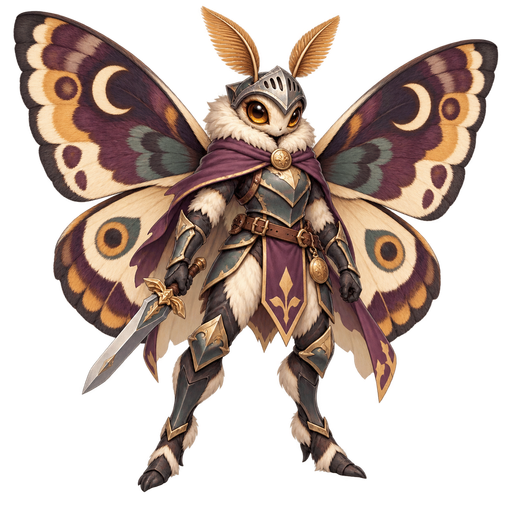
01 Before: whole image1254 × 1254 px
Complete uncropped source for Downscale

Whole image, shown smaller to this panel. Original proportions preserved.
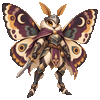
02 After: actual size1× · 100 × 100 px PNG
Downscale exported PNG at native size 100 px

The finished sprite at its actual size. It has not been enlarged.

Downscale export at native 100 by 100 pixels
Actual download size (1:1)100 × 100 pxShown without enlargement.
Size chosen
96 px
Sprite, before border
96 × 96
Empty border, each side
2 px
Final PNG size
100 × 100

201,5884,753 visible colours. We chose a 96 px sprite with a 2 px empty border. Small textures become simpler at this size.

Download this PNG ↓

How this example was made Engine 0.2.0 +

Settings used for this example

96 px was chosen to retain the face and wing markings. Binary transparency removes faint edge pixels. No grid repair or colour reduction.

Measured from this run

Trimmed subject bounds
1187 × 1190 px
Subject aspect ratio
0.997 : 1 (width : height)
Requested core dimensions
96 × 96 px (aspect-preserving)
Final size calculation
(96 + 2 × 2) × (96 + 2 × 2) = 100 × 100 px

At 1:1, browser zoom and display scaling can affect physical screen pixels. Preview backgrounds are not included in the PNG.

Exact recipe

{
  "recipeVersion": 1,
  "engineVersion": "0.2.0",
  "mode": "downscale",
  "background": {
    "mode": "preserve",
    "toleranceRgbPercent": 8,
    "erosionSourcePx": 0
  },
  "grid": {
    "enabled": false,
    "outlineExpansion": 0
  },
  "resize": {
    "enabled": true,
    "longestSide": 96,
    "filter": "source_default",
    "allowUpscale": false
  },
  "palette": {
    "enabled": false,
    "colours": 24,
    "protect": 4,
    "cleanPasses": 0
  },
  "finish": {
    "trim": true,
    "alpha": "binary",
    "thresholdPercent": 50,
    "gutter": 2,
    "bleedTransparentRgb": true
  }
}

SHA-256 file hashes

Source 94ac6047bf458e244bfd7fb8a5446eca1064d473612a14dedc70a7937a815411

Result 08b94d985f33894329b3ce0016f7fe7f0ec14f90673ccd311c20f4125012c6f3

Try these tools on your own artwork.Open downscale

Plain descriptions, useful technical names

Choose by what looks wrong.

If the edges look fuzzy

Use Downscale. It makes a large picture smaller without squashing it or leaving a pale border.

If the “pixels” look uneven

Use Pixel-grid repair. A grid is simply the invisible row and column pattern that keeps every pixel the same size. SpriteReady can estimate it. You can adjust the grid when the suggestion does not fit.

If the colours look dirty

Use Clean palette. A palette is the small set of colours used by the picture. SpriteReady removes nearly identical shades while protecting details.

01

Choose your picture

Your image stays in the browser. SpriteReady shows the original beside the result so the difference is easy to judge.

02

Start with the suggested settings

You do not need to understand the technical controls. Run the suggested cleanup first, then adjust only if the example tells you why.

03

Download or keep refining

Try another cleanup tool on the same picture without spending another fix. The original is always kept safe.